
Finally, after a five-month break, I finished version 0.5.0 of TrackLab and then released three important patches 0.5.1, 0.5.2 and 0.5.3! This version has a totally new approach to metrics — you can now create your own. Additionally, you can create lists with any items you want. You can also link metrics and lists to an action or a tag. More details below.
Custom metrics
I’ve already written a post about basic metrics, but obviously everyone has their own vision of what they need to measure. So, the ability to create your own metrics in TrackLab was inevitable.
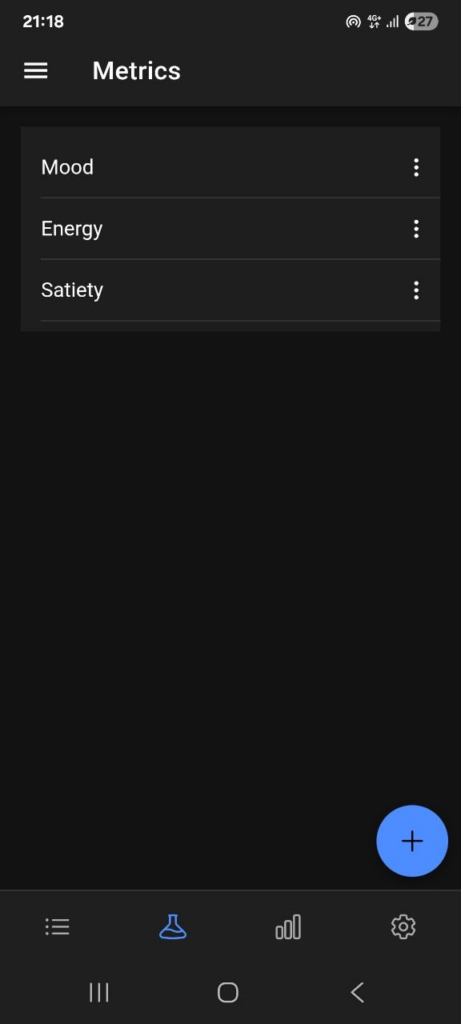
As my app is titled TrackLab, I decided to put metrics in the section called Lab. This section will contain everything you need to customize your experience with the app.
Let’s create a new metric together! Go to the Lab section and tap the plus button.
For example, I will create a metric for weight. As my current weight is 85 kg, I’ll set the minimum and maximum values to 80 and 90 respectively.

The “Show previous value” checkbox will prefill the value from the last activity with that metric. I added this because for subjective metrics like mood or energy, you don’t want to know the previous value – it can influence your current one. For example, I once wouldn’t let myself set energy to 5 when the previous value was 7, because a 2-point drop felt too big, so I set it to 6 instead. That’s why I made a conclusion that it’s better to assess subjective metrics independently from previous values.

After adding a new metric, you can see it when logging a new activity. But there’s a problem – usually you won’t weigh yourself every activity. That’s why I added the ability to link a metric to an action or a tag.
For weight, let’s create a new action “weighed myself” and link it to the weight metric.
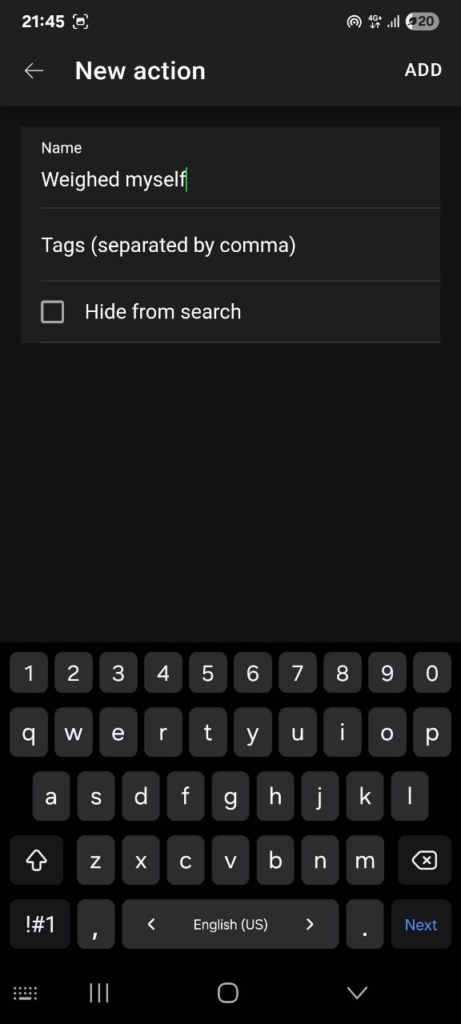
Go to Lab, then to Library, then to Actions. Create a new action, then return to Metrics and edit the Weight metric. Start typing the name of the action into the Item input and select the action you need. After saving, the metric will be linked to the action and will only appear in the activity form when that action is selected.

This way you can create any metrics you want – height, blood pressure, reps, steps, weight lifted at the gym, cigarettes smoked, orange cats spotted on the street, etc.
Library
Besides metrics, the Lab section has a Library. The Library consists of lists — Actions, Tags, Emotions, and custom lists. A list consists of items and, like a metric, can be linked to an Action or a Tag. For example, a list of food items could be linked to the action “eating” or “cooking.”
Keep in mind that Actions and Tags are system lists — you can’t modify, delete, or link them. The Emotions list is basic and also cannot be modified or deleted, but it can be hidden (if you don’t want to use it) and linked.
Statistics
Of course, the changes to metrics and lists are reflected in the Statistics section. Now you can choose which metrics you want to see on graphs. For lists, you can select any item to see statistics about time spent on it.
Database
The database has been migrated from IndexedDB to SQLite. At first glance it’s not a big change, but when your database grows large, the difference in efficiency becomes significant.
Additionally, you can now reset your database at any time (don’t forget to make a backup first).
Other changes
I added new achievements for the new features. To unlock them all, I recommend actively using Metrics and Lists.
The MD import/export feature has been removed. I added it early on to import my data from Obsidian, but I no longer see how it would be useful to anyone.
Conclusion
This is the release note for version 0.5.3 of TrackLab. I wanted to share why this version took so long, but that deserves a dedicated post — it’s related to some changes in my life and a shift in perspective. See you soon!