
I started my journey as a web developer with HTML. It was in high school with the book HTML4 for Dummies. Recently, I decided to refresh my knowledge of HTML and see what has changed. The last time I did that when HTML5 was released.
Living standard
The biggest news from the past I missed is there was a conflict between two HTML standards, maintained by W3C and WHATWG.
W3C preferred to release specifications version by version (5.1, 5.2, and so on), but WHATWG considered that approach too slow for modern web. Browser developers were interested in quick changes to the standard to implement new features faster.
That’s how HTML Living Standard was created. And until 2019, there were two standards. The story ended with the victory of the Living Standard, which we use nowadays.
The new standard doesn’t have an official logo, so I created one myself. Infinity symbolizes constant changes. The green color is from WHATWG’s logo, but I made it brighter.

Tutorials
I think that online tutorials like W3Schools, MDN or freeCodeCamp are the best way to learn. They are like books but can be updated by authors anytime and have exercises you can complete right in a browser.
Video format is good for demonstrating the development process with many small actions. For example, you can watch how to create a page from a Figma layout. It would be too tedious to write and read, so it’s perfect for video format.
Take the best from both formats.
I’ve finished W3Schools’ tutorial because it has bite-sized lessons. I just wanted to refresh my knowledge, not learn everything from scratch. It also has game elements like experience, streaks, and a leaderboard. MDN’s tutorial is verbose, and that’s perfect for beginners. FreeCodeCamp’s is the most practice-oriented among all three.
That’s good that the tutorials are different. Everyone can find something they like.
Also, during my research, I discovered a free online book https://htmlforpeople.com/. It looks nice and it’s easy to read. Resources made by other developers for free have always inspired me.
Complete tag list
For the science interest, I decided to check whether tag lists from MDN and W3Schools are relevant to the standard. Both of them have mistakes.
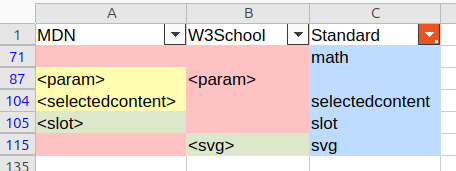
MDN has two mistakes – the absence of math and svg tags.
W3School has four mistakes – the absence of math, selectedcontent, and slot tags, and the param tag is not marked as deprecated.
It seems like the math tag is so new that tutorials haven’t had time to add it. It would be a nice topic for my next research.
What’s new I learned?
Document structure
When HTML5 was released, it presented new semantich tags – header, footer, aside, main, section, article, nav, etc. I didn’t attach much importance to them and continued to use div everywhere. When I worked in companies on internal products and mobile apps, we didn’t care much about semantics and SEO.
Now I’ve refreshed these tags in my memory and will create new layouts using them properly.
- Header and footer can be nested in body, section, and article, but only once per parent.
- Aside is a tag for side content of the page
- Main can be used on a page only once and contains the main content of the page
- Section is a block with a heading that is part of another big element (page, article, or other section)
- Article is a block with a heading and user-generated content (post, comment)
- Nav is a navigation with links to other pages
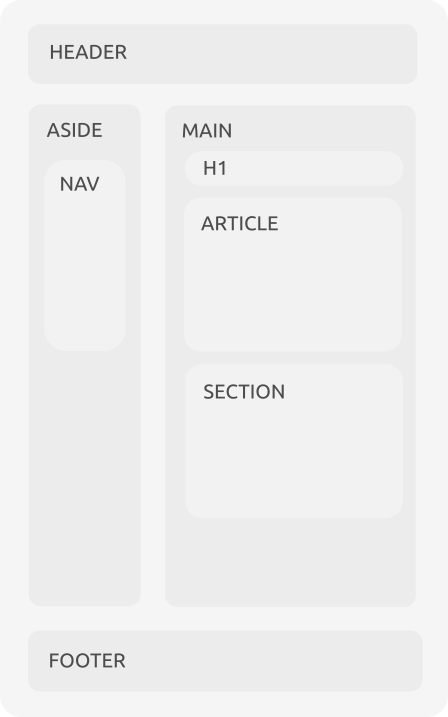
The div tag can be used in other cases: for blocks without headings, design elements, containers for elements grouping (flex, grid), etc.
For landing pages, I wouldn’t use articles, because usually there is no user-generated content.
Accessibility
Why is document structure important? Because of accessibility (a11y) requirements. Proper document structure makes it easier for users of screen readers to navigate through the page.
To be honest, I was shocked by how many attributes for a11y there are in HTML. All of them start with the word ARIA.
If you open Google Chrome’s DevTools, you can find a button for switching to the Accessibility Tree. The tree is similar to the DOM, but it shows information that is important for screen readers.

For example, images are presented as text from the alt attribute.
If you want to meet the requirements, you can use Firefox, because it has a feature to check issues related to a11y.
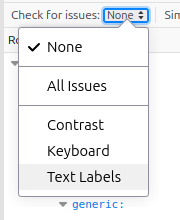
And if your images don’t have alternative text, you will know it.
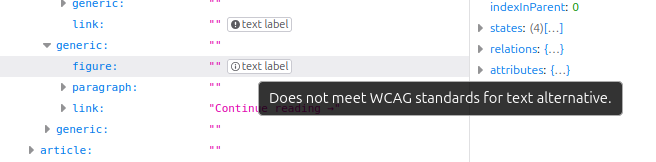
There is also a list of tools for checking and repair a11y issues.
My site has issues. I’m going to fix them during the redesign.
Other tags
Besides the semantic tags I’ve learned some rare tags that I’ve never used.
- kbd – keyboard input. It comes in handy when you write shortcuts in your text.
- samp – program output. It could be styled for errors and warning in development-related articles
- picture – must-have tag for RWD (Responsive Web Design). You can set images for different screen sizes. The same effect can be reached with srcset and sizes attributes for img tag
- time – defines date and time in a standartized format. It helps search engines link your post with mentioned dates
- cite – title of a work. I think it also should help search engines. By the way, I used it in this post in the first paragraph.
Meta tags
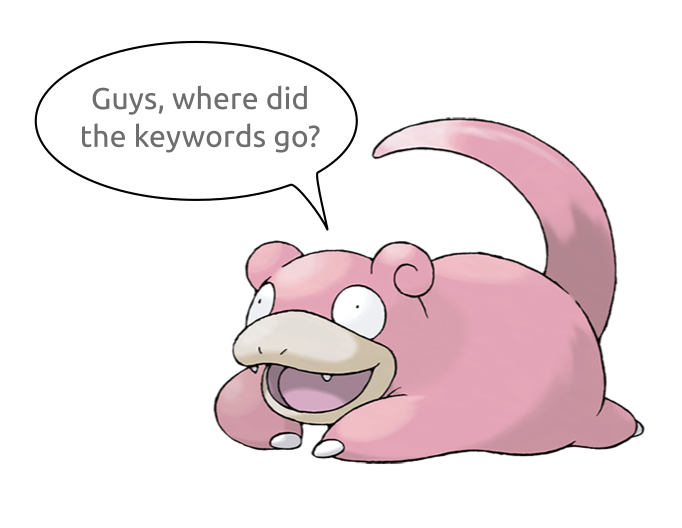
Fresh news from 2000s: the meta keywords tag is totally ignored by modern search engines. I thought it was still a thing and tried to find how to add keywords to my posts in the Yoast plugin. You learn something new everyday!
There are new meta tags for social media: og:title, og:image, etc. OG stands for Open Graph. They are mandatory if you want the links to your pages to look nice in social media posts.
Validator
When I just started, I tried to make my pages 100% valid. I didn’t even allow info-level messages. Now I understand that there is no reason to be a perfectionist.
The HTML validator is still in the possession of the W3C, and they are in no hurry to update it to the living standard. That’s why some new features that are supported by most browsers, can be considered errors by the validator.
For example, I checked my site and found out that the latest version of WordPress uses new features that are considered errors by the validator.
- CSS: contain-intrinsic-size: Property contain-intrinsic-size doesn’t exist
- Bad value speculationrules for attribute type on element script
I found a thread where this topic was discussed. The interesting part was that there was a real perfectionist who decided to update all his clients’ sites just to keep them valid. I respect that, but this is obviously overkill.

When thinking about validity, don’t forget your site’s goal. A site’s goal usually is to be indexed by search engines in order to attract more visitors. I don’t think that Google cares about 100% validity. What’s important is the document structure with links, headings, meta tags, and quality text.
But that doesn’t mean you shouldn’t use an HTML validator at all. I would recommend sticking to the 20/80 rule. You will reach 80% of the result by fixing only 20% of the errors. Of course, those should be the most critical errors.
If it’s a new feature that is not supported by the validator, check if it’s supported by browsers and how it influences your site’s appearence in old browsers.
Emmet
And the last thing I want to talk about is speeding up layout creation. There is a tool worth learning simultaneously with HTML. It’s the Emmet plugin, and it’s included in VS Code by default.
You can learn its syntax in the documentation. After learning it, you can easily create HTML structures in one line. For example:
div>nav#upper-menu>ul.menu>li.menu-item*5>a[href="#"]{menu item}Then press Tab key and the line converts into:
<div>
  <nav id="upper-menu">
    <ul class="menu">
      <li class="menu-item"><a href="#">menu item</a></li>
      <li class="menu-item"><a href="#">menu item</a></li>
      <li class="menu-item"><a href="#">menu item</a></li>
      <li class="menu-item"><a href="#">menu item</a></li>
      <li class="menu-item"><a href="#">menu item</a></li>
    </ul>
  </nav>
</div>With practice you’ll get used to it, and it will boost your speed for sure.
Conclusion
I refreshed my knowledge of HTML and am ready to move to CSS. Sure, it has many features that I missed for the last 7 years. I will definitely share the results with you. See you next time.
Sources
- HTML living standard: https://html.spec.whatwg.org
- HTML validator: https://validator.w3.org/
- W3Schools’ tutorial: https://www.w3schools.com/html/default.asp
- MDN’s tutorial: https://developer.mozilla.org/en-US/docs/Learn_web_development/Core/Structuring_content
- FreeCodeCamp’s tutorial: https://www.freecodecamp.org/learn/responsive-web-design-v9/
- Free online-book: https://htmlforpeople.com/
- Post about meta keywords: https://yoast.com/meta-keywords/
- Open graph: https://ogp.me/
- Emmet plugin: https://docs.emmet.io/
- A11y: https://developer.mozilla.org/en-US/docs/Web/Accessibility/ARIA/Reference/Attributes
- Thread about errors in validator: https://core.trac.wordpress.org/ticket/63289